
 CLOSE MENU
If you’ve forgotten your SPH Domain Account password or need to reset it, follow these steps using DomainSelfService:
✅ Step-by-Step Instructions
- Access the DomainSelfService portal: https://domainselfservice.sph.cuny.edu
- Navigate to the reset password function
- On the login page, click the “Forgot your password” link.
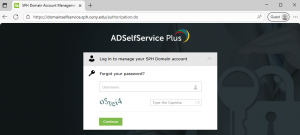
- On the login page, click the “Forgot your password” link.
- Enter Your Domain Username
- Type your domain username
- For SPH employees, this is typically your first name initial followed by your last name (e.g. JSmith).
- For students, this is typically your first name initial, followed by your last name, and last two digits of your EMPL ID (e.g. JSmith45).
- Type in the captcha code displayed.
- Click Continue.
- Type your domain username
- Verify Your Identity
- Select your SPH email address, to receive a link to reset your password.
- The email will come from helpdesk@sph.cuny.edu
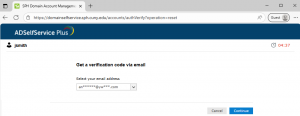
- Retrieve the password reset link from your email account
- https://outlook.office.com
- Log in using your CUNY Login account ending in @login.cuny.edu
- Set a New Password
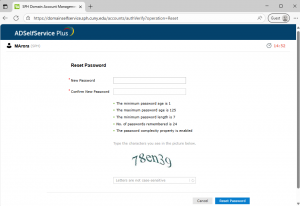
- Enter your new password.
- Confirm the new password.
- Type in the captcha code.
- Submit
- Click Reset Password.
- You’ll see a confirmation message once your password is successfully reset.
- Log In with Your New Password
- Use your new password to log in to your domain account (Windows, SharePoint, etc).
💡 Tips
- Make sure your new password is strong and secure – we recommend using a password manager and creating unique passwords for every login you use.
- If you face any issues, reach out to IT support for assistance – helpdesk@sph.cuny.edu.