
 CLOSE MENU

To follow-up on the important August 21 message to faculty from Executive Vice Chancellor & University Provost, Wendy Hensel, CUNY SPH is providing this specific list of resources and guidance for instructors to improve the accessibility of their course materials.
As a reminder, all faculty are required to ensure compliance with the Americans with Disabilities Act and the related recent Department of Justice Voluntary Compliance Agreement (VCA) so that we can support our students with disabilities at CUNY.
Here is a practical step you can take TODAY to ensure accessibility in your course:
In accordance with the ADA, NYS IT Accessibility Policy, and other laws, instructors should consider the accessibility of course materials, online learning products, platforms, and applications, including content they created, prior to use in the course. Blackboard Ally will assist with this determination for content uploaded to Blackboard.
Explore the accordions below by clicking on the + symbols to expand each section.
You may have noticed some different color indicators in your course since CUNY has enabled the Blackboard Ally tool.

Blackboard ALLY improves course quality by making content more accessible and usable, thereby, promoting Universal Design for Learning (UDL) principles and enhancing students’ learning and instructors’ teaching.
Blackboard Ally provides an accessibility summary and overview about any accessibility issues in your course. Ally’s course accessibility report includes Overview and Content tabs so that you can get the big picture as well as specific details about the accessibility of your digital course content.
- The Overview tab shows the accessibility score for the course, course content grouped by content type, and a list of all issues identified in the course
- The Content tab shows you the content with accessibility issues.
You can read more about how the Blackboard Ally tool works on this website: https://help.blackboard.com/Ally/Ally_for_LMS/Instructor/Course_Accessibility_Report
To access the accessibility report for your course, log in to Blackboard and go into the course you are teaching. On the left-hand side navigation under Course Management, click on Course Tools- Accessibility Report.
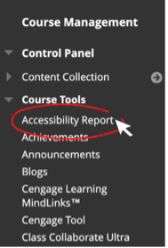
This will launch the Blackboard Ally interactive tool to help you improve accessibility in your course.
We suggest starting with the Fix low scoring content tab, and working through the other tabs as needed.
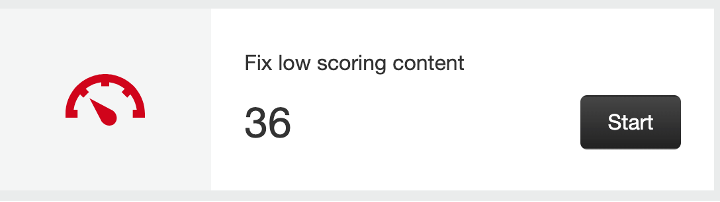
Click Start, and it will bring you to a list of documents and areas in your course that are inaccessible or need to be improved.
Note: You may notice that some of the files giving you an accessibility alert are not actually deployed in your course. They may be files that you uploaded to the content collection, but never used or did not make available to students. We recommend that you remove any excess files that are not actually utilized in your course.
CUNY Assistive Technology Services has helpful tutorials with details on how to fix content with Severe Alerts: http://cats.cuny.edu/media-accessibility-project/pdf-accessibility/
Fixing your document’s accessibility is more efficient when starting with a digitally generated document. The ideal situation is to start with a source document that was saved as a PDF in the proper manner with accessibility features, such as tagging, adding alt text to images and using headings as bookmarks.
To make documents that you created (in MS PowerPoint, Word, etc.) accessible, follow the instructions provided by CUNY Assistive Technology Services: http://cats.cuny.edu/media-accessibility-project/pdf-accessibility/
If you have scanned a chapter of a book or document that you did not create, you are encouraged to:
- Locate a digital version of the content by performing a Google search.
- Reach out to the book publisher and request a digital copy of the content in question, so that you can provide an accessible format for your course.
- Consider updating the content to something that meets accessibility guidelines.
- Summarize the content and incorporate it into your lecture. You can cite the source, but don’t necessarily need to ask students to read the entire chapter.
If the above suggestions are not ideal for your scanned document that is saved/converted to a PDF using a process called OCR. You can make your document accessible by following these helpful tutorials provided by CUNY Assistive Technology Services.
An important note about OCR:
If your source material is a scanned document, you must perform optical character recognition (OCR) to convert the image to editable text. Adobe Acrobat does a nice job of identifying text in the document, but it will almost never be perfect. Some text will not be identified, or will be incorrectly converted. Also, text in images, charts and graphs is often incorrect. We highly recommend proofreading any documents that you perform OCR on, to ensure accuracy. You will also have to add tags, headings, language, hyperlinks to your document, etc. to ensure accessibility.
You can always check your document’s accessibility rating by uploading it to your course in Blackboard, and looking for the Ally score. This may take a few minutes to generate once you have uploaded the document.
Tip: Make the document you are testing unavailable to students by clicking on the down arrow next to the item, and selecting Make Unavailable.
Images Without a Description. Adding Image Alt Text: https://getadaaccessible.com/when-to-use-alt-tags-on-images-for-accessibility/
Video Captions on YouTube: https://www.boia.org/blog/youtube-closed-captioning-for-accessibility-why-and-how
The SPH Office of Online Learning has instructions on adding captions to your YouTube videos, and how to add videos to your course, in this tutorial.
NYS IT Accessibility Policy: https://its.ny.gov/system/files/documents/2023/10/nys-p08-005-accessibility-of-information-communication-technology.pdf
Check color contrast: https://webaim.org/resources/contrastchecker/
Check the reading level of your materials: https://hemingwayapp.com/
Create accessible PDFs in Microsoft Office: https://support.microsoft.com/en-au/office/create-accessible-pdfs-064625e0-56ea-4e16-ad71-3aa33bb4b7ed
Create and share accessible documents in Google Docs: https://support.google.com/docs/answer/6199477?hl=en
Test web accessibility with WAVE Web Accessibility Evaluation Tools: https://wave.webaim.org/
CUNY Accessibility Toolkit for Open Educational Resources: https://guides.cuny.edu/accessibility
In Fall 2023, CUNY facilitated a Special Series for CUNY Faculty: Disability & Accessibility. Watch the recordings and register for upcoming sessions here: https://www.cuny.edu/academics/faculty-affairs/cuny-innovative-teaching-academy/disability-accessibility/
For an overview of accessibility, CUNY City Tech has created a self-paced training course for professors: https://openlab.citytech.cuny.edu/accessibilitymodule/
Need Help?
If the above steps are unclear or if you have any further questions, please reach out to Laura.Ferrigon@sph.cuny.edu for assistance.
For help finding alternative content that is accessible for your course, contact our librarian Rosemary.Farrell@sph.cuny.edu.
If you have a student who needs accessible documents or accommodations, please have them email Sara.Ingram@sph.cuny.edu.