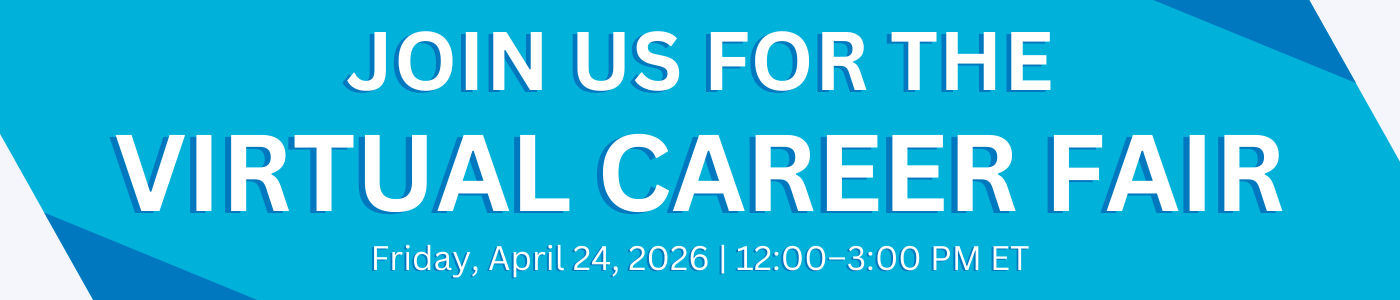
Virtual career fairs on Handshake make it easy for students and alumni to connect with employers and explore career opportunities in public health. Through one-on-one video chats and group sessions, you can learn about organizations, discover new roles, and build meaningful professional connections.
Preparing in advance is key to making a strong impression. Register early and follow the steps below to get the most out of the Spring 2026 Virtual Career Fair.
Need help getting Handshake-ready?
Join a Handshake Office Hours session for quick, one-on-one support. Additional sessions will be offered throughout April 2026 specifically for Career Fair preparation.
Click Continue with email(do not use Single Sign-On / SSO).
Enter your email address:
Students: use your @sphmail.cuny.edu email
Alumni: use your @sphmail.cuny.edu email or the personal email listed in CUNYfirst
Enter your Handshake password and click Log in.
If this is your first time accessing Handshake, follow the step-by-step instructions in Claiming Your CUNY SPH Handshake Account to set up your password and complete your account.
A complete Handshake profile is essential for connecting with employers, receiving personalized opportunity recommendations, and making the most of the Career Fair.
To build or update your profile, add key information such as your education, projects, work experience, and skills. Employers review profiles ahead of the Career Fair, so keeping your profile current and polished can significantly increase your visibility.
Why a complete profile matters:
Personalized opportunities: Handshake recommends jobs and internships based on your profile details.
Targeted outreach: The CUNY SPH Office of Career Services sends opportunity emails based on profile information.
Increased visibility: Students with complete profiles are significantly more likely to be contacted by employers.
Career Fair readiness: Employers often review profiles before sessions, so a strong profile helps you stand out.
To maximize visibility, we recommend setting your profile privacy to “Community” so both employers and the CUNY SPH community can view your profile. For more details, see Profile Privacy Options in Handshake.
To upload your resume, cover letter, or other documents to Handshake, follow the steps outlined in Managing Your Documents in Handshake. This guide walks you through uploading, organizing, and updating documents so they’re ready to share with employers.
You control what employers can see by adjusting your profile privacy settings in Handshake. There are three visibility options: Community, Employers, and Private.
Community (recommended for Career Fairs): Your profile is visible to employers, students, and alumni. This setting is required to participate in group sessions and virtual events hosted on Handshake, including the Spring 2026 Virtual Career Fair.
Employers: Your profile is visible to employers only. You can participate in 1:1 sessions and receive employer messages, but you’ll be prompted to switch to Community for group sessions.
Private: Your profile is not visible to employers or other students. You can still browse jobs and apply, but you will not be able to participate in virtual fair sessions unless you update your visibility.
Important notes:
Your GPA is never visible unless you explicitly choose to share it.
Career Services staff can view your profile for support purposes, regardless of privacy setting—but only you can change your visibility.
If you’re unsure which setting to choose, we recommend “Community” to get the most out of the Career Fair.
The Spring 2026 Virtual Career Fair is open to all CUNY graduate students and CUNY alumni. You do not need to be a current CUNY SPH student to attend, but you must have an active Handshake account to register and participate in sessions.
There are a few common reasons you may not be able to sign up for a specific session:
The session is full. Once a group or one-on-one session reaches capacity, it will no longer appear as available.
There is a scheduling conflict. Handshake does not allow overlapping sessions. If you are already signed up for a session at the same time, you’ll need to cancel that session before selecting another.
You are already signed up with that recruiter. You can only register for one one-on-one session per recruiter. To choose a different time with the same recruiter, cancel your existing session first.
Eligibility requirements are in place. Some one-on-one sessions may have qualifications set by the employer (such as degree level or program), and you must meet those requirements to register.
Your profile privacy setting needs to be updated. Certain sessions—especially group sessions hosted on Handshake—require your profile visibility to be set to Community. If needed, Handshake will prompt you to update your settings during signup.
We recommend researching employers in advance so you can prioritize sessions, prepare thoughtful questions, and identify organizations that align with your interests.
Yes. The CUNY SPH Office of Career Services offers several resources to help you prepare for the Spring 2026 Virtual Career Fair.
You’re encouraged to review the Career Events Calendar for upcoming workshops and events. Please note that most events are open to CUNY SPH students and/or alumni only. Recordings from Spring 2025 are also available and may be helpful, including:
Handshake How To’s: A Step-by-Step Tutorial on Handshake Features
Covers Handshake fundamentals such as completing your profile, exploring opportunities, and engaging with employers.
Handshake How To’s: Career Fair Edition
Walks through how to research employers, sign up for sessions, upload your resume, and navigate the fair on Handshake.
Career Corner: Career Fair Prep
Offers practical tips and strategies for preparing for the fair, making strong impressions, and following up with employers.
In addition, Handshake Office Hours are available for personalized, one-on-one support. You can book a session at your convenience, and additional Office Hours will be offered throughout April 2026. These sessions can help with:
Navigating the Career Fair and signing up for sessions
Completing or updating your Handshake profile
Uploading resumes and troubleshooting technical issues
For questions about access or to request disability-related accommodations for the fair, such as ASL interpretation or closed captioning, please contact Maya Lloyd at Maya.Lloyd@sph.cuny.edu no later than Friday, April 10, 2026.
Key accessibility features in Handshake:
Automatic captions for video: Handshake’s video platform, Daily, includes an automatic captions feature. Select Captions when joining a video session to enable captions. Captions appear in the top left corner of the screen and can be moved to another area. At this time, only English is supported.
Color contrast: Handshake is designed with sufficient color contrast to support readability.
Keyboard-only navigation: Users can navigate the platform using only a keyboard, which supports individuals who may not use a mouse.
Screen reader support: Handshake is compatible with screen readers for users who rely on this technology.
Live captioning for video: Handshake allows a transcriber to join virtual sessions to provide live captioning services.
Pinning a video: Users can pin the video of an ASL interpreter who has joined the session. This will only affect their own view and will not pin the video for other participants.
To make sure you’re ready for the fair, review Handshake’s Attendee Resources for technology setup, which walk through how to test your audio, video, and connection in advance.
On the day of the fair, Career Services staff will be available in a dedicated Help Room on Zoom throughout the event to assist with technical issues or questions. Details and the Zoom link will be shared via email prior to the fair.
If you experience any issues joining a session, Career Services staff will be available in a dedicated Zoom Help Room throughout the event. Details and the Zoom link will be shared via email before the fair. You can also reach out to CareerServices@sph.cuny.edu for support.
Yes—whenever possible, we strongly recommend turning your camera on during both one-on-one and group sessions. Having your camera on helps employers put a face to your name, shows engagement, and creates a more natural, conversational experience.
That said, we understand that technology access and personal circumstances vary. If you’re unable to turn your camera on due to technical issues or other constraints, you can still participate fully by being attentive, asking thoughtful questions, and engaging through audio or chat.
If you’re concerned about your setup, consider testing your camera and audio in advance or booking a Handshake Office Hours session for support.
Asking thoughtful questions helps you learn more about the organization and shows employers that you’re engaged and prepared. Aim for questions that help you understand the role, team, and next steps.
Examples include:
About the organization
What types of public health projects or initiatives is your team currently focused on?
How does your organization measure impact in its work?
About the role
What does a typical day or week look like in this role?
What skills or experiences tend to help candidates succeed on your team?
About growth and culture
How do early-career professionals grow or take on more responsibility in your organization?
How do teams collaborate across departments or disciplines?
About next steps
What advice would you give someone interested in applying?
What does the hiring timeline or process typically look like?
You don’t need to ask everything—even one or two well-chosen questions can lead to a meaningful conversation. In group sessions, wait for the employer to open Q&A or use the chat if available. In one-on-one sessions, feel free to ask questions throughout the conversation.
Career Services staff will be available throughout the event in a dedicated Help Room on Zoom. You can stop by at any point during the fair to ask questions or troubleshoot technical issues. In addition to technical support, the Help Room will also include an Attendee Lounge—a space for informal conversation, peer support, and debriefing about sessions or overall fair experiences.
Details and the Zoom link for the Help Room will be shared with registered attendees via email ahead of the fair. If you need assistance during the event, this will be the fastest way to reach our team in real time.

 CLOSE MENU